Import candidates lets you bulk upload external candidates directly into Jobtrain using a CSV file. You can register them as applicants immediately or invite them to apply, with automated emails sent based on your chosen option.
I want to:
- Upload one or more candidates directly to a job
- Choose whether to register them as applicants or invite them to apply
- Understand how imported candidates receive system emails
Step 1: Request activation
Before you can import candidates, the feature must be activated.
✅ Action: Raise a request with our support team to enable Import Candidates
Step 2: Prepare your CSV file
You’ll upload candidates using a CSV file in a specific format.
Your file must:
- Be saved as .csv (not Excel or other formats)
- Include at minimum:
- First name
- Surname
- Title
- Email address
Ignore NHS-specific fields like VPD or Employer ID - these are not required.
We recommend using a previously successful import file as a template and adjusting the relevant fields.
Step 3: Upload your candidates
1. Go to the Quick Links menu (the 9-dot grid icon in the top navigation menu).
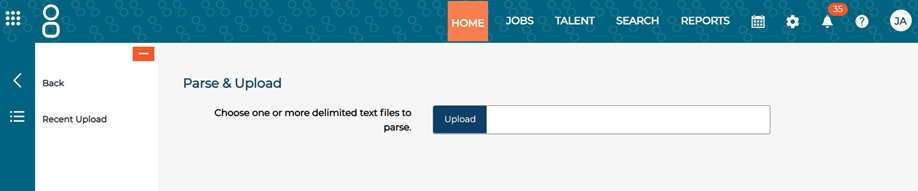
2. Select Upload Candidates.
3. Choose your completed CSV file and select Upload.
4. If the upload is successful, your candidates will appear on screen.
5. Select Save to confirm the upload.
Step 4: Manage imported candidates
Once imported, go to Recent Uploads to review candidate records.
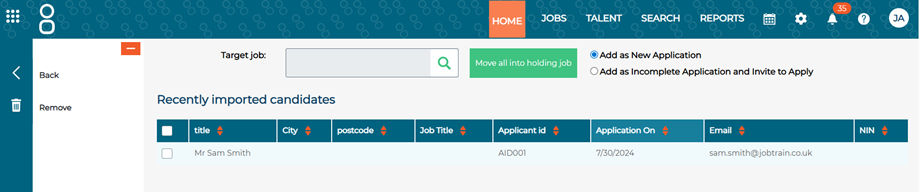
- Select the target job to move uploaded candidates into.
- Choose the toggle to import the candidates as New or Incomplete applications – see steps below.
Add as new application
- Candidate is registered and added directly to the job.
- They receive:
- The standard registration email
- An application acknowledgement email
Only basic information (name, email) is included from the import.
Add as incomplete application and invite to apply
- Candidate is registered and an incomplete application created for the job.
- Candidate receives:
- A registration email
- A custom invite to apply (if configured), or a default email if not
The default email includes:
- A preview link to the job advert
- Instructions to create an account and complete the application
Incomplete applications must be completed before the job’s closing date.
- After choosing the import type, select Move all into holding job to complete the process.
Step 5: Check candidate communications
You can view emails sent to each imported candidate:
- Open the candidate record
- Select the History tab or Sent Emails
You’ll see:
- If they were imported via upload
- Registration email and acknowledgment (if added as new)
- Custom or default invitation (if added as incomplete)
Special cases
Private jobs
Importing works the same as using Add Applicants to Private Job. Imported candidates will:
- Be added as incomplete
- Receive the same system emails
- Be able to apply if the job is still open
FAQs
What happens if I upload an Excel (.xlsx) file?
The process will fail. Always save and upload as .csv.
What happens if I upload a candidate that already exists?
If the email address matches an existing record, the application is linked to that candidate.
What emails do candidates receive?
- If added as new: registration and acknowledgment
- If added as incomplete: registration and invite to apply.
If no invite is configured, the system sends a default version.
Can I import candidates after the closing date?
Only if you add them as new applicants. Incomplete applications can’t be completed after the closing date.
Can I import candidates into private jobs?
Yes. They’ll be treated like manually added candidates and invited to apply.
Can I import address details, equal opportunities data or a CV?
No. The import process currently only supports basic information: first name, surname, title and email address.
If you need additional details from the candidate - such as address, equal opportunities information or to collect a CV - import them as an incomplete application and invite them to apply. This allows the candidate to complete the full application form themselves.
Was this article helpful?
That’s Great!
Thank you for your feedback
Sorry! We couldn't be helpful
Thank you for your feedback
Feedback sent
We appreciate your effort and will try to fix the article