TrustID carries out several verification steps during a digital identity check. If any of these checks cannot reach the confidence level required under UK digital identity standards (GPG45), the result may be returned as Failed or Inconclusive.
This does not always mean the candidate’s identity is incorrect. Instead, it means TrustID was unable to confirm the identity digitally and additional steps may be required before the Right to Work or DBS process can continue.
If the check fails or is inconclusive
In most cases, a Failed result simply means further verification is needed, not that the candidate is ineligible.
When this happens:
- The candidate’s application status will automatically update to Intervention Required:

- This indicates that the digital identity check could not be completed and manual action is now needed before the identity check or DBS process can move forward.
- If you initiated the identity check, you will receive an automated Intervention Required email letting you know that action is required.
Within the Onboarding Hub, under the Employment Checks tab, you may also see a failed / inconclusive icon displayed against the candidate’s record. |
|

Selecting this icon opens the Identity Check Progress panel, where you can view:
- The current check status
- A summary of what failed
- A downloadable PDF report containing TrustID’s findings
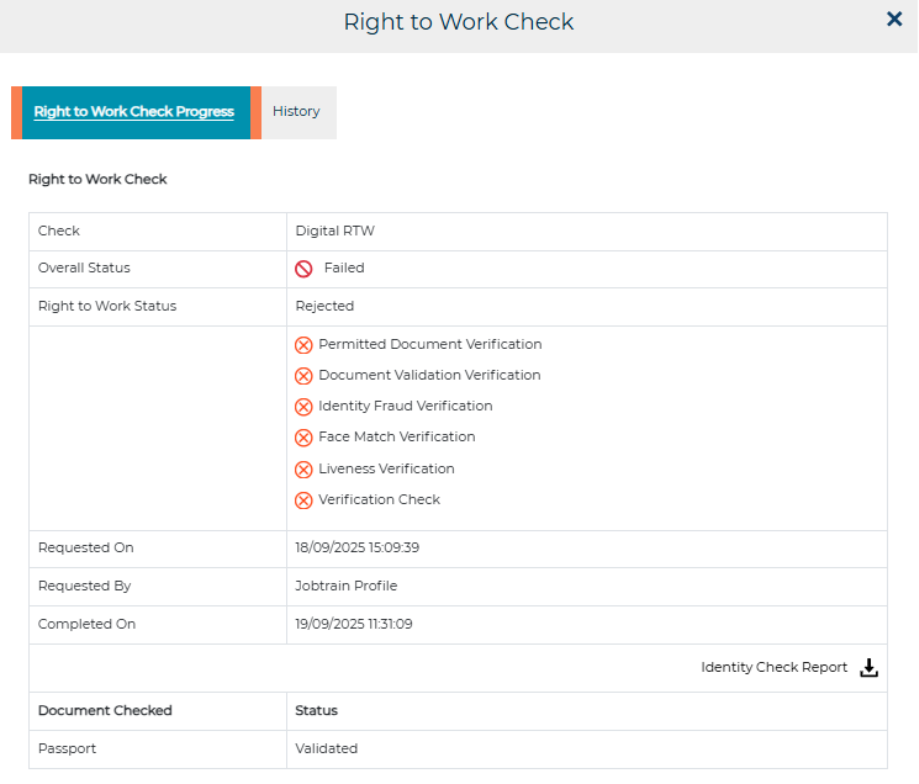
Depending on the type and severity of the failure, you may see one or both of the following actions available:
- Restart Check
Used to request the candidate repeats the digital identity check journey. - Complete Manual Identity Verification
Used when a digital check cannot reach the required confidence level and the identity check must be completed manually in person.
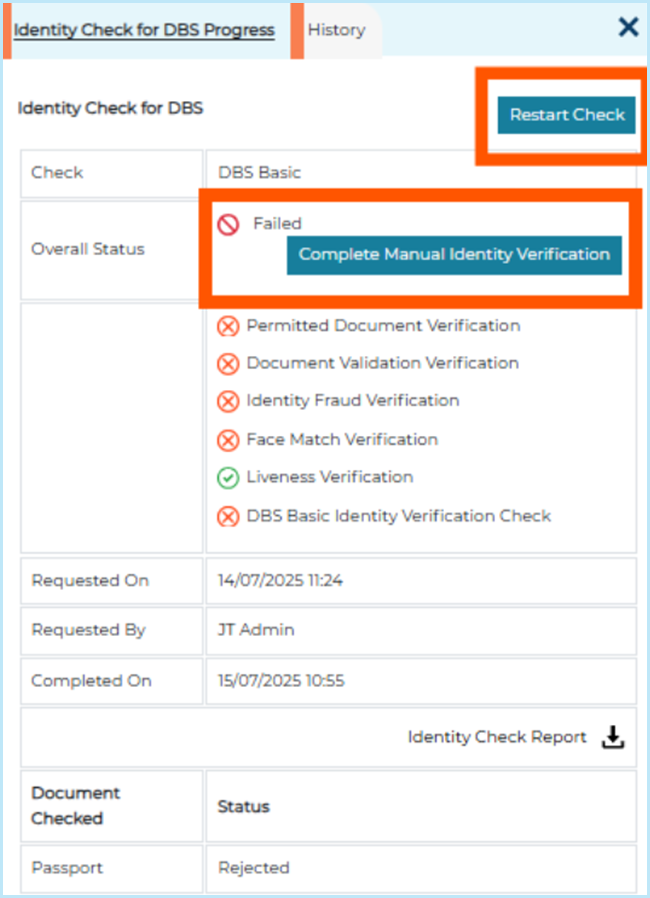
Restart vs Complete Manual Verification
1. Restart Check
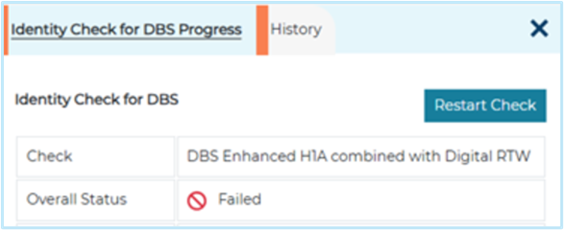
What Restart Check does
- Sends a new TrustID guest link to the candidate.
- Allows them to repeat the digital identity check from the beginning.
- Replace the previous attempt entirely.
When to use Restart Check
Use Restart Check when the identity check failed due to something the candidate can reasonably correct.
Common examples include:
- Blurry or poor-quality images: Candidate uploaded an ID image with flare, blue or shadows.
- Face match failed: Selfie didn’t match because of glasses, poor lighting or angle.
- Liveness check failed: Candidate uploaded a still image instead of completing the required live selfie.
- Name mismatch: Candidate entered their name differently from how it appears on the document (e.g. missing middle name).
- Wrong document type: Candidate picked the wrong option and simply needs to restart and upload the correct document.
A restart gives the candidate another opportunity to correct these issues and complete the check digitally.
When Restart Check will not help
Restarting the digital journey will not resolve issues caused by underlying verification constraints, such as:
- Address verification failure
- GPG45 identity score not met
- Fraud indicators flagged by TrustID
In these cases, a second digital attempt is extremely unlikely to succeed.
2. Complete Manual Identity Verification
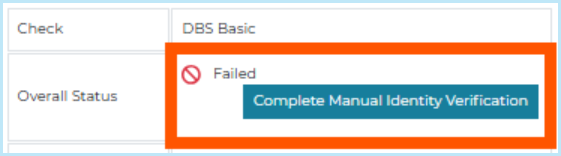
What Manual Verification does
- It bypasses the digital TrustID process.
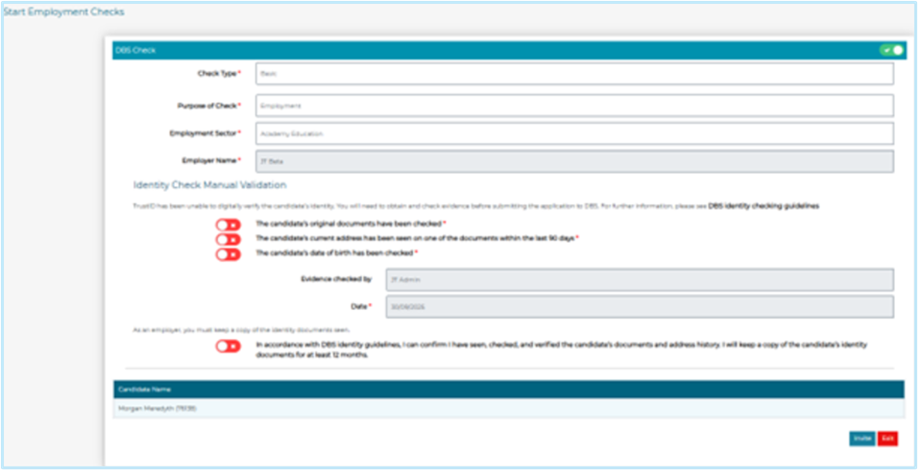
- Allows you to confirm that you have personally reviewed the required identity documents.
- Enables you to complete the identity declaration in line with Home Office guidance so the process can continue.
When to use Manual Verification
Select this option when TrustID cannot complete the check digitally and a restart is not expected to resolve the issue.
Examples include:
- Address verification failed: TrustID cannot confirm the candidate’s address using online databases.
- GPG45 identity score not met: The digital process cannot reach the level of identity confidence required.
- Fraud indicators: Such as suspected document alteration, missing security features, or entries on fraud databases.
What you must confirm before selecting Manual Verification
You must confirm you have checked:
- The candidate’s original identity documents
- Proof of address dated within the last 90 days
- The candidate’s Date of birth
- Any other documentation relevant to the identity check
The Manual Verification button should only be used when you can confidently confirm identity through physical document checks.
Once you confirm this in Jobtrain, the process can move forward without TrustID’s digital confirmation.
Making the right choice
Digital checks are highly accurate, but not every candidate will pass them. The key differences are:
Use Restart Check
If the candidate can fix the issue and realistically pass the digital check on a new attempt.
Use Complete Manual Verification
When the failure is due to a reason that won’t change with another digital try.
Restarting in cases like address mismatch, GPG45 score issues or fraud warnings will not change the outcome and only delays progress. In these situations, manual review is the correct route.
For more information about DBS Identity Guidelines, visit the UK Government website.
Cancelling checks
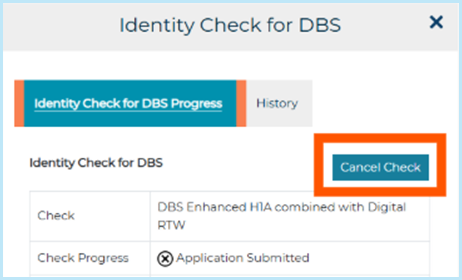
There are situations where an identity check cannot continue in its current form and must be cancelled so it can be restarted cleanly. Cancellation closes the existing attempt and allows you to begin a brand‑new digital identity check.
When to cancel a check
You should cancel and restart a check when any of the following situations apply:
The check was started in error
Examples include:
- The wrong job was selected
- The wrong branch was chosen
- The wrong type of identity check (Right to Work, DBS, etc.) was initiated
In these cases, the original check cannot be corrected and must be cancelled.
The identity check can no longer progress
This means the current attempt is no longer valid or usable.
Real‑life examples include:
- Verification data has expired
TrustID can only use certain data (like document scans or liveness checks) for a limited time. If too much time passes, the data becomes invalid and the existing check cannot continue. - The candidate did not complete their TrustID link in time
TrustID guest links expire after 14 days of inactivity. If the candidate doesn’t complete the process, a fresh check is required. - The candidate partially completed the check but left it too long to finish
Some elements expire behind the scenes, meaning TrustID can’t continue with the original attempt.
Manual verification is not allowed for this type of failure
Certain types of failures cannot be resolved digitally or manually.
Examples include:
- Both GPG45 and address verification failed
This combination means the identity cannot be validated through either route, so the only compliant option is to restart the check. - A TrustID rule prevents manual processing
(e.g. a specific type of fraud indicator that cannot be overridden). - DBS checks must be submitted manually outside Jobtrain
If a DBS application cannot proceed digitally, the digital TrustID check must be closed so the process can move ahead via the manual route.
What happens when a check is cancelled
When you cancel a check:
- The current digital identity check is closed and cannot be updated further.
- A new identity check can be started immediately from the Start Employment Checks area.
- A new TrustID guest link is generated for the candidate, allowing them to complete the identity process from the beginning.
Was this article helpful?
That’s Great!
Thank you for your feedback
Sorry! We couldn't be helpful
Thank you for your feedback
Feedback sent
We appreciate your effort and will try to fix the article