For: Superusers, recruiters, hiring managers
What you’ll achieve
Configure default calendar behaviour and control user permissions for booking and visibility.
I want to:
- Set default calendar values
- Configure email defaults
- Control booking cut-off restrictions
- Allow private events
- Manage booking permissions by security role
Configure default calendar settings
Some fields in event setup can auto-populate based on System Customisation.
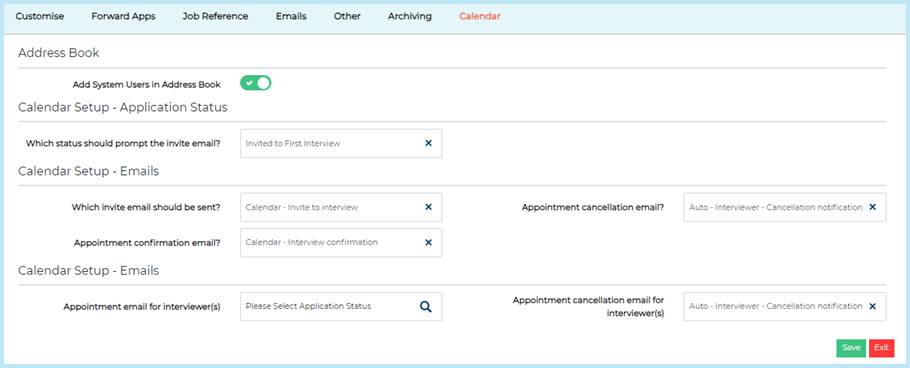
Go to: Settings > System Customisation > Calendar
- From here you can configure:
- Default invite status
- Default email templates
To check the default post-booking status:
Settings > System Customisation > Customise > Interview Statuses > Interview Accepted
Select Save after making changes.
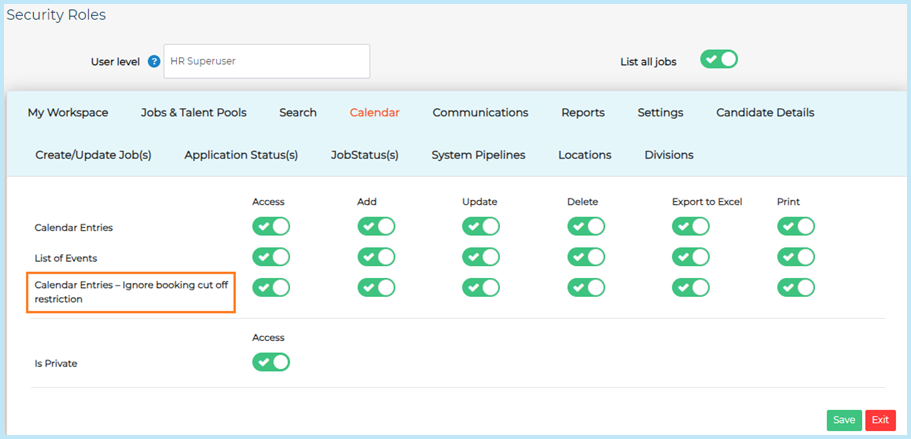
Configure booking cut-off override
By default, users cannot book candidates beyond the event’s booking cut-off restriction.
To allow specific roles to override this:
- Go to Settings > Security Roles.
- Open the relevant role.
- Go to the Calendar tab.
- Next to: Calendar Entries – Ignore booking cut off restriction
- Enable:
- Access
- Add
- Update
- Enable:
- Select Save.
Allow users to create private events
To allow users to create private events:
- Go to Settings > Security Roles.
- Open the relevant role.
- Go to the Calendar tab.
- Enable Is Private.
- Select Save.
Best practice
- Limit booking cut-off overrides to trusted roles.
- Restrict private event permissions where audit visibility is required.
- Pre-set email templates to reduce setup errors.
Was this article helpful?
That’s Great!
Thank you for your feedback
Sorry! We couldn't be helpful
Thank you for your feedback
Feedback sent
We appreciate your effort and will try to fix the article