For: Superusers, recruiters, hiring managers
What you’ll achieve
Manage candidate interview bookings after an event has been created, including assigning interviewers and sending Microsoft Teams invites from the Booked tab.
I want to:
- Invite candidates to book a time slot
- Book a time slot on behalf of a candidate
- Cancel an interview booking
- View booked and available time slots
- Assign interviewers to booked slots
- Send Microsoft Teams invites and additional emails
- Use filters to manage booked interviews
- Access archived events
Invite candidates to book a time slot
After your event is created and linked to a job, move candidates to the trigger status.
- Go to Jobs in the top navigation menu.
- Open the relevant job.
- Select the candidate(s).
- Change their status to the status defined in: Which status should prompt the invite email?
- Select Save.
The invite email is sent automatically and includes a link for the candidate to book a time slot.
Book a time slot on behalf of a candidate
Appointments can also be booked on behalf of candidates should the need arise.
- Go to the relevant Job.
- Select the Calendar icon next to the candidate’s name.
- Select List Available Appointments.
- Select the required time slot.
- Select Confirm Appointment.
The candidate receives the confirmation email.
Assigned interviewers receive a booking notification (if configured on the event).
Important
The system defaults to preventing users from booking events after the cutoff specified in the event details. However, you can enable this option for specific security roles if needed. Please click here for more info - Configure calendar settings and permissions.
How to cancel a booked interview
- Open the candidate’s record.
- Select the Calendar icon.
- Select Cancel appointment.
- Select Cancel Appointment to confirm.
The configured cancellation emails are sent automatically.
Always select the Calendar icon to cancel an interview, not the interview date shown on the record
Info - Candidate self-service cancellation
Candidates can cancel or rearrange their own appointment through the candidate portal.

When cancelled, the slot becomes available again and configured cancellation emails are sent automatically.
View booked and available time slots
- Select the Calendar icon in the top navigation menu.
- Open the event
- Booked tab – shows candidates who have booked.
- Vacant tab – shows available time slots.
Using the Booked tab to manage interview bookings
Open the event and select the Booked tab.
From here, you can:
- Email or send an SMS to booked candidates
- Select individual candidates using the checkboxes
- Select all candidates on the page
- Select interviewers (Add Interviewer(s))
- View assigned interviewers in the Interviewer column
- Sort or filter by:
- Date
- Location
- Interviewer (including Interviewer Not Assigned)
Filters can be used together (for example, Date + Location).
How to assign interviewers and send communication
Use this to assign interviewers to booked slots and send required communications.
- Go to the Booked tab.
- Select the candidate(s).
- Select Add Interviewer(s).
- In Interviewer(s), select one or more interviewers.
- (Optional) Select a value in Change Candidate Status To.
Then choose how you want to send the interview communication (options below).
Option 1: Create a Microsoft Teams meeting
Use this when the interview will take place on Microsoft Teams.
- Turn on the MS Teams Invite toggle.
- Sign in to Microsoft Teams if prompted.
- In Shared Invite Email – Sent to Interviewers & Candidate, select a Teams Invite Email template.
- (Optional) Expand:
- Additional Email to Interviewers
- Additional Email to Candidate
- Select Send Invite.
Result
- One Teams meeting is created per selected slot.
- The invite is sent from your logged-in Teams account.
- The candidate and interviewers receive the same Teams meeting link.
- Any additional emails selected are sent separately.
If no interviewers are selected
If the MS Teams Invite toggle is on and no interviewers are selected:
- A Teams meeting is still created.
- The attendees are the organiser and the candidate only.
Option 2: Send standard emails (not a Teams meeting)
Use this when the interview is not hosted on Microsoft Teams (for example, face-to-face or telephone).
- Leave the MS Teams Invite toggle switched off.
- Enable at least one of:
- Additional Email to Interviewers
- Additional Email to Candidate
- Select the required email template.
- (Optional) Turn on Add Calendar Meeting File (.VCS) if required.
- (Optional) Select any available documents.
- Select Send Invite.
Result
- No Teams meeting is created.
- Standard email(s) are sent.
- If enabled, a .VCS calendar file is included.
Important
The .VCS calendar file option is not available when MS Teams Invite is enabled, as the Teams meeting link provides the calendar invitation.
Updating an existing Teams interview
Use this to add or remove interviewers after a Teams invite has been sent.
- Select the Calendar icon in the top navigation menu.
- Open the event
- Go to the Booked tab
- Select the candidate.
- Select Add Interviewer(s) or click the edit icon in the action column.
- Update the Interviewer(s) field.
- Select Update Invite.
What happens next
- The existing Teams meeting is updated.
- The same Teams meeting link is retained.
- Added interviewers receive the updated invite.
- Removed interviewers are removed from the meeting.
A new Teams meeting is not created.
Important
- Only the original organiser can update the Teams meeting.
- If another user attempts to edit, a warning message is displayed.
Restricting interviewer visibility to assigned candidates
If required, interviewers can be restricted to viewing only the candidates assigned to their interview appointments.
To do this, you must:
- Use the Change Candidate Status To option during assignment (where appropriate), and
- Ensure the interviewer’s Security Role limits access to only the relevant application status.
When configured correctly, interviewers will only see the candidates assigned to their appointment slots.
This relies on your existing Security Role configuration and does not apply automatically without appropriate status restrictions.
Archived events
Auto-archiving
By default, events are automatically archived 10 weeks after the end date of the most recent appointment.
Archived events do not appear in the main event list
What happens when an event is archived?
Once archived:
- The event is removed from the main event list.
- The Booked column no longer displays a number.
- The event can still be located using the search function.
- The event can be unarchived if required.
Viewing archived appointments
To view booked appointments within an archived event:
- Locate the event using the search function.
- Open the event.
- Select the Booked tab.
All previously booked appointments remain visible.
How to view appointment history from a candidate record
- Open the candidate record.
- Select More.
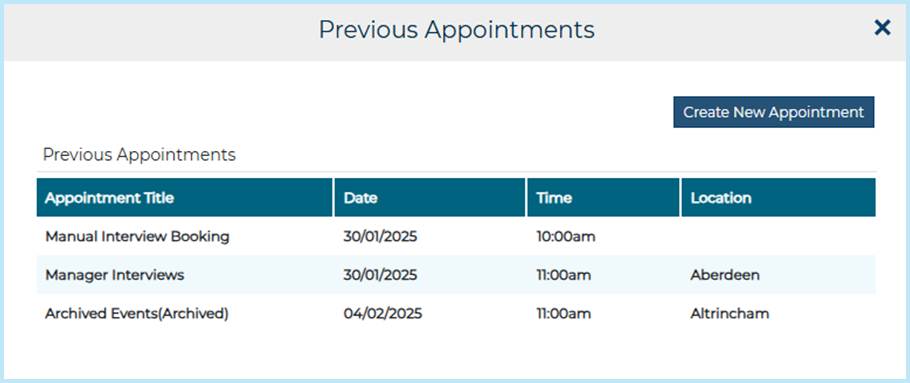
- Select Previous Appointments.
This page displays:
- Active Calendar Event Manager appointments
- Archived Calendar Event Manager appointments (labelled Archived)
- Manually scheduled interview appointments
Important

Archived events:
- Are no longer available in Advanced Insights reporting
- Should only be archived once reporting and compliance checks are complete
FAQS
Why didn’t the candidate receive a booking invite?
Check if:
- The candidate was moved to the correct trigger status.
- The event is linked to the job.
- The correct email template is configured on the event.
What is the difference between the Teams invite and additional emails?
- The Teams invite creates a calendar meeting with a shared meeting link.
- Additional emails are separate messages that can include attachments.
If both are selected, recipients receive both.
Can I send a calendar file without using Teams?
Yes. If the MS Teams Invite toggle is off, you can enable Add Calendar Meeting File (.VCS) to send a standard calendar attachment without creating a Teams meeting.
How can I tell if a Microsoft Teams invite has already been sent?
On the Booked tab, a Teams icon appears in the Action column when a meeting has been created. If no icon is visible, no Teams meeting exists for that meeting.
Do I have to select a candidate status change when assigning interviewers?
No. The Change Candidate Status To field is optional. If selected, the status updates when you confirm the assignment.
What is the difference between the Interviewers tab and assigning interviewers from the Booked tab?
- Interviewers tab (event-level): Sends emails configured on the Emails tab (appointment and cancellation).
- Booked tab > Add Interviewer(s): Sends only the communication options selected at the time (Teams invite and/or Additional Emails).
The two areas operate independently.
Why didn’t a Teams meeting get created?
A Teams meeting is created only if:
- The MS Teams Invite toggle is on,
- A Teams Invite Email template is selected, and
- You are signed in to Microsoft Teams.
If the toggle is off, only standard email communication is sent.
Why can’t I update a Teams interview?
Only the original organiser can update the meeting. Updates must be made using the organiser’s Microsoft Teams account.
Will editing an interview create a new Teams meeting?
No. Editing updates the existing meeting and retains the same meeting link.
What happens if I enable MS Teams but don’t select any interviewers?
A Teams meeting is still created for the organiser and candidate. Interviewers can be added later.
Do I need to select a communication option when assigning interviewers?
Yes. At least one of the following must be selected:
- MS Teams Invite
- Additional Email to Interviewers
- Additional Email to Candidate
Can I add interviewers to a non-Teams appointment that already has interviewers assigned?
Yes. When you select Add Interviewer(s) again:
- The previous email template is pre-populated.
- The email is sent only to newly added interviewers.
What happens if I change the ‘Additional Email to Interviewers’ template without adding new interviewers?
If you select a different Additional Email to Interviewers template when editing an appointment, the newly selected email will be sent to all interviewers currently listed, even if no new interviewers were added.
What happens if a candidate cancels through the portal?
- The appointment is removed from the Booked tab.
- The time slot becomes available again (subject to booking rules).
- The candidate receives the configured cancellation email.
- Interviewer cancellation emails are sent only to interviewers listed on the Interviewers tab (not those added via Booked tab > Add Interviewer(s)).
If the appointment was a Teams meeting, it is not automatically cancelled. The organiser must cancel it directly in Microsoft Teams.
Can I delete date/time appointments?
Yes, if no candidates are booked. If candidates are booked, you must cancel those bookings first.
If a candidate withdraws or deletes their profile, is the appointment cancelled?
Yes. The appointment is cancelled automatically and a cancellation email is sent to interviewers listed on the Interviewers tab. This applies whether the candidate withdraws, deletes their profile, or a system user withdraws on their behalf.
Further information on this is included in our withdrawn applications - email notifications user guide.
I’ve followed the guidance notes and have some further questions.
For any questions about using Calendar Event Manager (or any other Jobtrain functionality), please contact our support team here.
Was this article helpful?
That’s Great!
Thank you for your feedback
Sorry! We couldn't be helpful
Thank you for your feedback
Feedback sent
We appreciate your effort and will try to fix the article