For: Superusers
What you’ll achieve
Create reusable job templates that can be copied to quickly set up future vacancies.
I want to:
- Create a reusable job template
- Understand what’s required when creating a template
- Know how templates differ from live jobs
- Use a template to create a new job
Create a job template
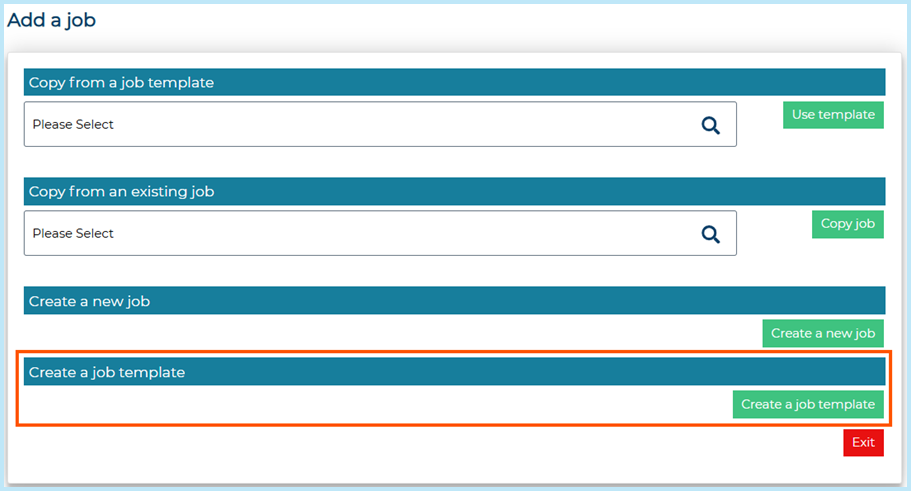
- Go to Jobs > Add a Job.
- Select Create a job template.
- Complete the Job Details page.
- Job Title and Job Title for candidates are required.
- Other mandatory fields are shown but are not enforced at this stage.
- Select Save.
The job is automatically saved with the status Template.
What’s different when creating a job template?
When you create a job template:
- The job status is automatically set to Template.
- Post the Job is not shown during template creation.
- Smart Match is not available.
- You cannot start an approval while the job remains a template, but you can select the appropriate approval workflow or authorisation template to ensure the correct approval route is applied later.
- On the Job Details page, only Job Title and Job Title for candidates are required. Other mandatory fields are shown as required but can be left blank at this stage.
- Saving at any point keeps the job status as Template.
- Bulk recruitment settings can be configured as part of the template setup.
Job templates allow you to build reusable, flexible templates without completing all live job requirements upfront.
Use a job template to create a new job
To create a live vacancy from a template:
- Go to Jobs > Add a Job.
- Select Copy from a job template.
- Choose the template you want to use.
- Complete all required fields.
- Go to Post the Job and set the job status to Live when ready.
All client-configured mandatory fields must be completed before the job can be posted or sent for approval.
Templates remain available for reuse and are not affected when you copy from them.
Important: mandatory field validation
Templates are reusable starting points and are not live vacancies.

Before a template can be made live, all required information must be completed. If anything is missing, the system will display the relevant validation message and prevent the job from going live until it is resolved.
Manage existing job templates
To view or amend templates already set up:
- Go to Search > Search Jobs.
- Select Template from the Job Status dropdown.
- Select Search.
- Open a template from the results.
- Select Edit Job from the left-hand Job Actions menu.
Best practice
- Use templates as reusable master records.
- Always create live jobs using Copy from a job template, rather than changing a template directly to Live.
- Review templates periodically to ensure role descriptions, locations and approval routes remain accurate.
FAQs
Who can create job templates?
Only users whose security role includes permission to create job templates will see this option.
Can I post a job template?
No. A template cannot be posted or sent for approval while its status is Template.
Does copying a template change the original?
No. The original template remains unchanged and can be reused multiple times.
Can I still create job templates using the old method?
Yes, it’s still possible to change a job’s status to Template on the Post the Job page. However, the recommended way to create templates is by selecting Create a job template from Jobs > Add a Job, which provides a simpler setup process.
Why can I not see the Create a job template option?
Your security role may not have permission to create job templates.
Contact your system administrator or Superuser to check whether the Allow to create job templates permission is enabled for your role.
Can I leave mandatory fields blank when creating a template?
Yes. When creating a template, only Job Title and Job Title for candidates are required. Other mandatory fields remain visible but can be left blank when saving the template. These fields must be completed when creating a new job from the template.
Can I send a job template for approval?
No. A job template cannot be sent for approval while its status is Template, and the Save and Start Approval option is not available.
You can select the appropriate approval workflow during template setup so that it applies when a job is later created from the template.
Does copying a template change the original template?
No. When you create a job using Copy from a job template, a new job record is created. The original template remains unchanged and can be reused for future vacancies.
Where can I find templates that already exist on my site?
You can view existing templates by going to Search > Search Jobs and selecting Template from the Job Status filter. Run the search to see all templates available on your site.
Can I edit an existing job template?
Yes. Templates can be edited in the same way as other jobs.
Open the template from Search > Search Jobs, then select Edit Job from the Job Actions menu.
If I update a template, will it change jobs that were created from it?
No. Changes made to a template only apply to future jobs created from that template. Existing jobs remain unchanged.
Can I enable bulk recruitment in a job template?
Yes. Bulk recruitment can be configured as part of the template setup.
When a job is later created from the template, the bulk recruitment settings will apply to the new job.
I’ve followed the guidance notes and have some further questions.
For any questions about using job templates (or any other Jobtrain functionality), please contact our support team on +44(0)161 8502004.
Was this article helpful?
That’s Great!
Thank you for your feedback
Sorry! We couldn't be helpful
Thank you for your feedback
Feedback sent
We appreciate your effort and will try to fix the article