Feature: Online referencing
Site: Referee portal
For: Superusers, recruiters
What’s new
Referees can now upload a company-issued reference document directly through the Online Reference Portal. This helps reduce declined requests and removes the need for manual uploads by recruiters.
Referees have three options when using the Reference Portal:
- Complete Form
- Upload Reference (new)
- Decline
This means referees can provide standard organisation-issued references (such as employment confirmation letters) without completing the online form.
Key benefits
- Fewer declined references
- Less manual admin for recruiters
- Improved audit trail and compliance
- Clear visibility of how each reference was provided
Availability
This is a feature-based update and is disabled by default. Please contact Jobtrain Support team to request activation.
What’s changed
Reference portal (referee experience)
Referees will see an additional Upload Reference option in the Reference Portal.
This opens a document upload screen where referees can:
- Upload a reference document
- Replace a previously uploaded file if needed
- Save or return without uploading
Uploaded files are validated in line with candidate document uploads.
Recruiter experience
You can clearly see if a reference was completed via the online form, uploaded by the referee or added manually by a system user:
Onboarding Hub
A new icon indicates when a referee has uploaded a document:
- Blue document icon

- Hover text: “The referee has uploaded a reference document, but it has not been marked as complete.”
Candidate record > References tab
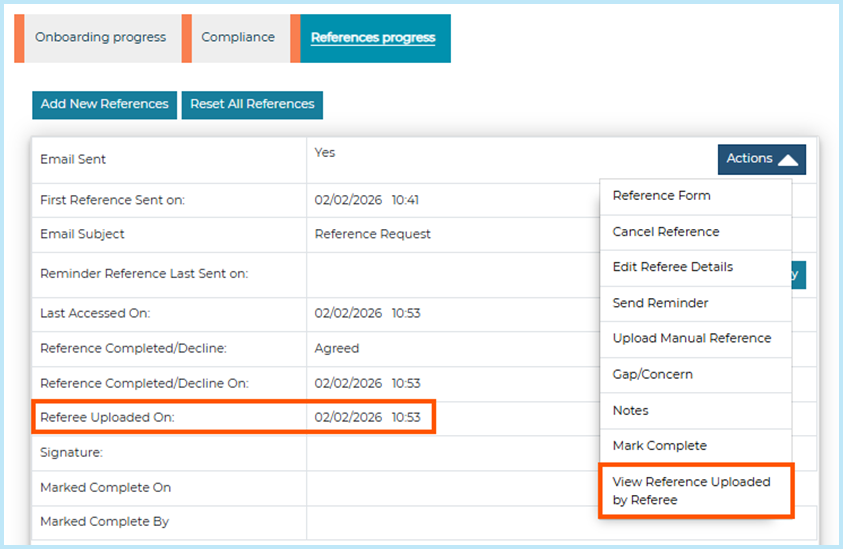
A new Referee Uploaded On field is displayed when a document has been submitted by the referee.
Actions menu (new)
When a referee uploads a document, a new option is available in the Actions menu: View Reference Uploaded by Referee, which downloads the uploaded file.
Candidate history and reference history
When a referee uploads a document, a new history entry is recorded: “Reference document uploaded by referee”.
No impact when disabled
If this feature is not enabled for your organisation:
- The Reference Portal remains unchanged
- The upload option and related updates are not visible
Best practice
- Enable this feature if your organisation accepts standard employer references
- Inform hiring teams so they understand new icons and statuses
FAQs
Why can’t I see the “Upload Reference” option?
This feature is enabled on request. If you don’t see the option in the Reference Portal, contact Jobtrain Support.
What types of references can referees now provide?
Referees can either:
- Complete the online reference form
- Upload a document (such as a company reference)
- Decline the request
Where can I view a document uploaded by a referee?
You can download it from the candidate record via the Actions menu.
How can I tell how a reference was submitted?
You can see whether a reference was completed via the online form, uploaded by the referee or added manually using icons in the Onboarding Hub and details in the candidate record.
Will reference reminders still be sent after a document is uploaded?
No. Once a referee uploads a document, reminder emails are no longer sent.
Can referees replace a document they’ve already uploaded?
Yes. Uploading a new file will automatically replace the previous version.
Can I still upload references manually?
Yes. Manual upload remains available and works alongside the new referee upload option.
Will documents uploaded by referees be included in Candidate Packs?
Yes. If Online references submitted is selected as an attachment when generating a Candidate Pack, any documents uploaded by referees will be included.
Does this change affect existing references?
No. Existing references and workflows remain unchanged.
I’ve followed the guidance notes and have some further questions.
For any questions about using Referee document upload (or any other Jobtrain functionality), please contact our support team on +44(0)161 8502004.
Was this article helpful?
That’s Great!
Thank you for your feedback
Sorry! We couldn't be helpful
Thank you for your feedback
Feedback sent
We appreciate your effort and will try to fix the article